Cases
A case is a file for a specific piece of work for a client. It groups together all the documents, agent outputs, risk flags, and approvals that belong to that matter. Cases give your work structure and make it easy to see the full picture of any engagement at a glance.
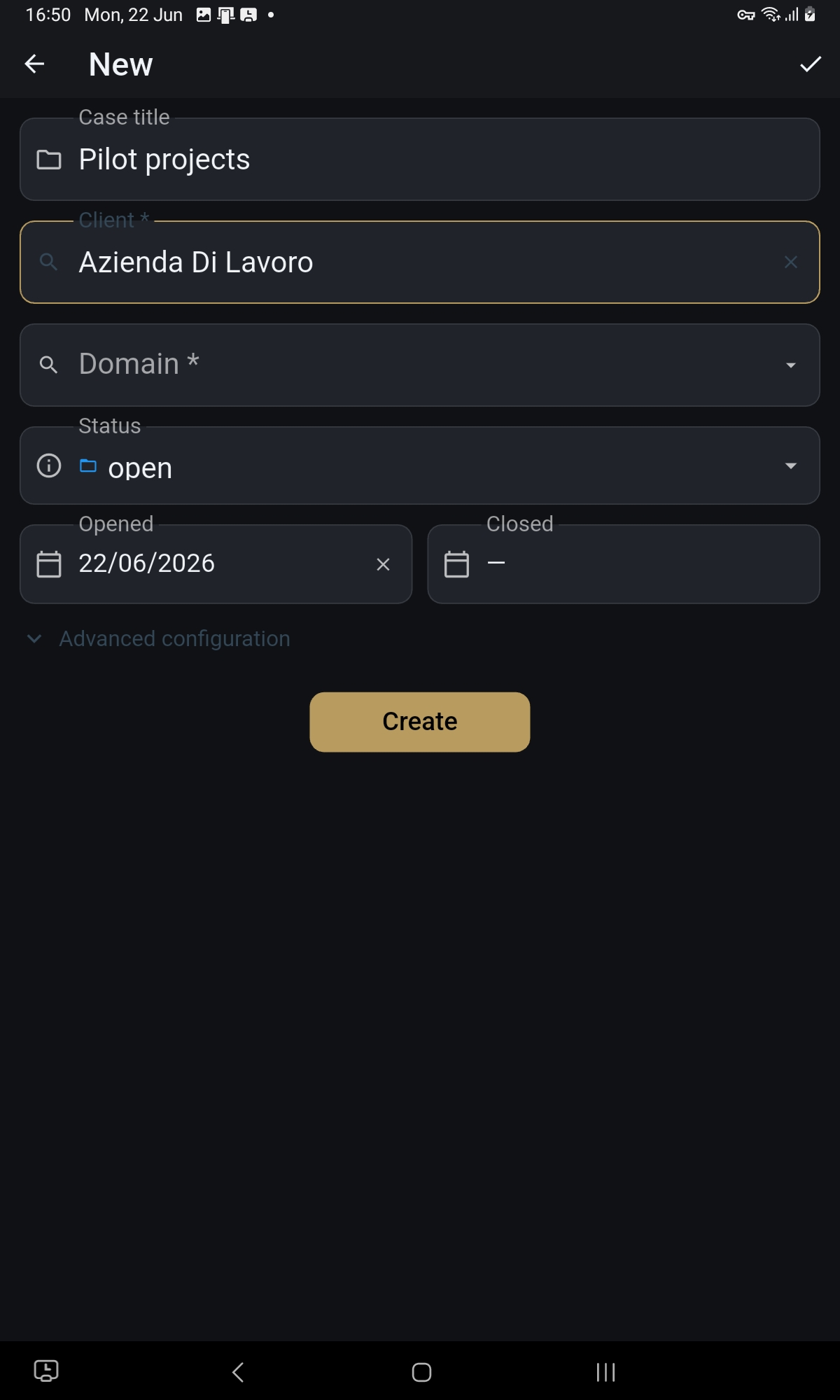
Opening a case
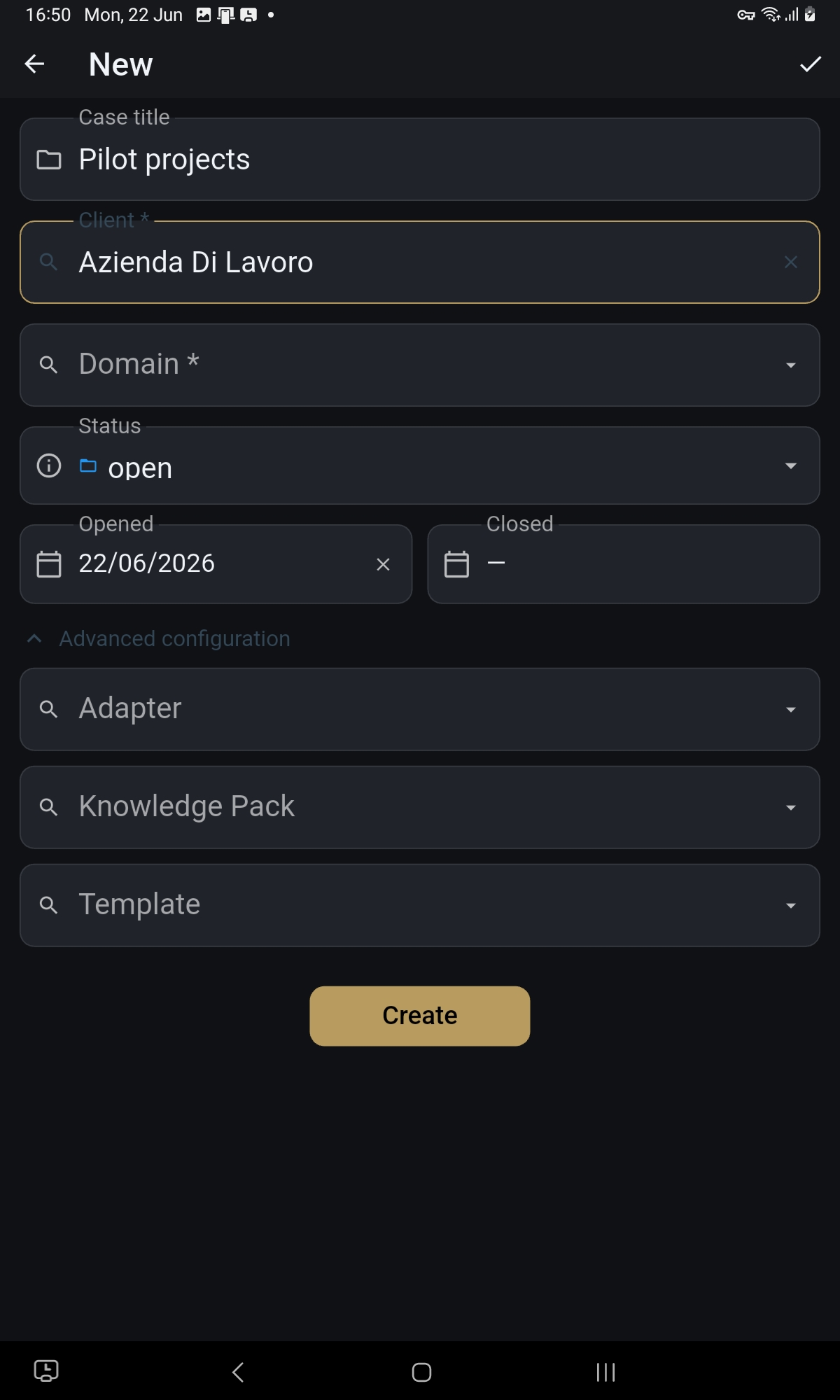
Go to Cases and tap the add button. Select the client, give the case a title, and choose a matter type. You can also add a reference number and assign it to one or more team members. Save to open the case.
Working in a case
From the case detail screen you can upload documents, start agent tasks, view risk flags, and see all outputs produced so far. Everything you add or generate here stays attached to this case.
Progressing a case
Cases move through stages: open, in review, pending approval, closed. To move a case to the next stage, tap the stage indicator and confirm. Your confirmation is recorded and attached to the case record permanently.
Risk flags and approvals
If an agent raises a risk flag during case work, the case will show a flag indicator. You must review and respond to open flags before certain actions are available. See the Risk Flags section of this guide for details.
Closing a case
When work is complete, close the case from the case detail screen. A closed case becomes read-only. If you need to add something after closing, you can reopen it this action is also recorded in the case history.
Platform features and interface are subject to continuous improvement. Descriptions in this guide may not reflect the exact layout or wording of the latest released version.